I have made a video tutorial for this pack. https://www.youtube.com/watch?v=ElW7Ot5lGas
This is a guide on how to transform Server 2008 (full installation) to Windows Vista based on a video by WinClient5270.
Why? The original video's download links no longer work and have been lost to time. As such, I have recreated the pack using files from Vista RTM and SP2.
NOTE: This only works on the original Server 2008 and does not work on R2.
I've took most of the instructions from this guide: https://www.youtube.com/watch?v=1Kh4qIAaXis
Download links:
You can download the pack here: Server 2008 to Workstation Pack
Windows Server 2008 may be downloaded here:
Windows Server 2008 SP2 x64
Windows Server 2008 SP2 x86
Add client features
On the Initial Configuration Tasks (I recommend a fresh install for this), you'll need to add the following client features for this pack:
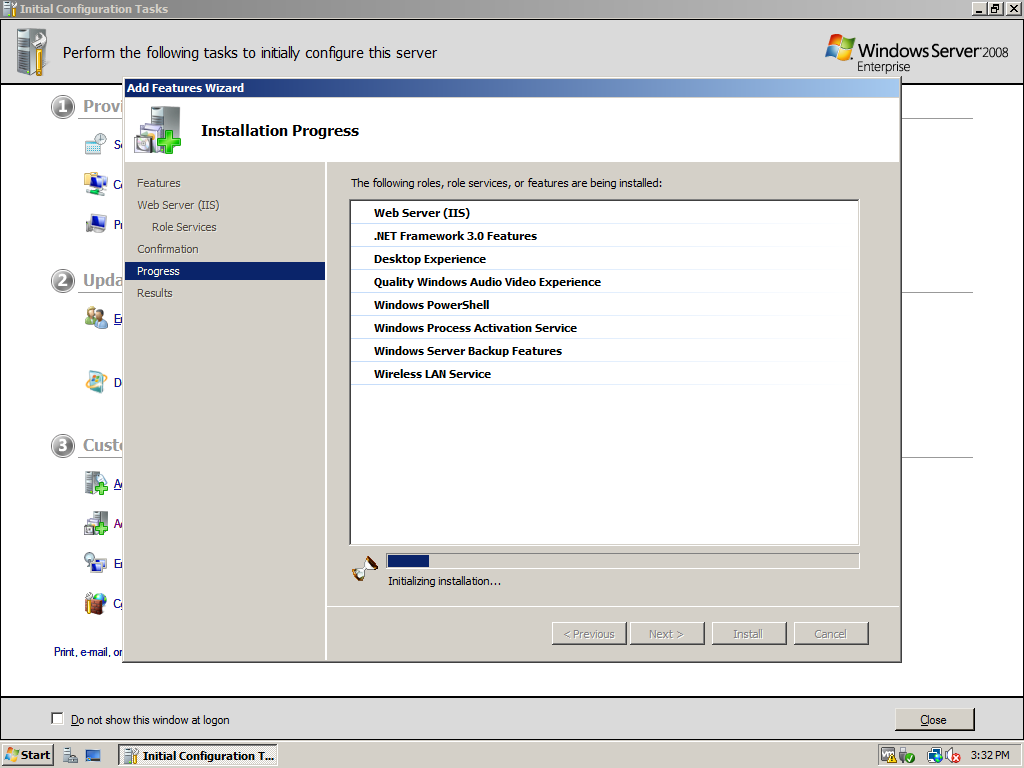
- .NET Framework 3.0 Features
- Desktop Experience
- Quality Windows Audio Video Experience
- Windows PowerShell
- Windows Server Backup Features
- Wireless LAN Service
Server 2008 workstation converter
After rebooting, download the Server 2008 to Workstation pack written above and put it anywhere (I'll put it in C:\)
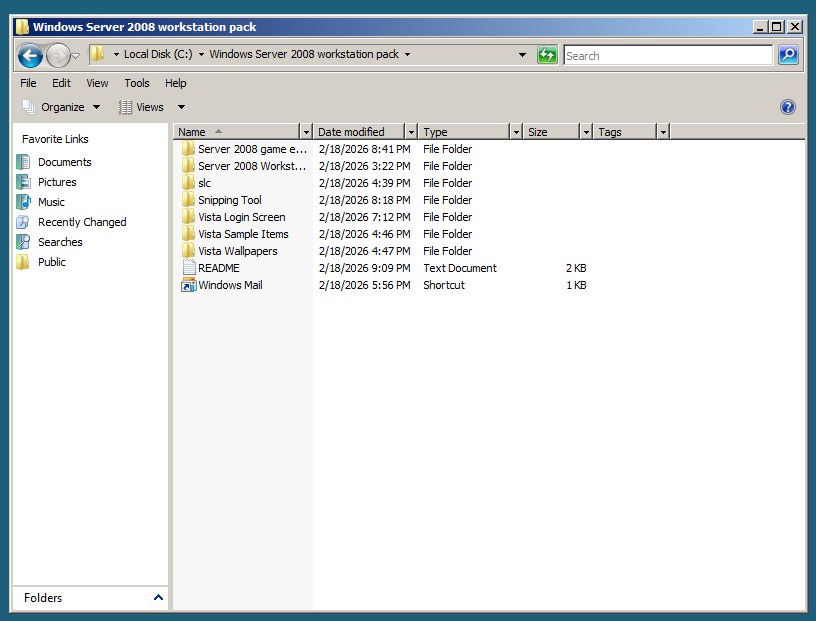
Go into the Server 2008 Workstation converter directory and run the Serv08Convert application
The app should look like this below.
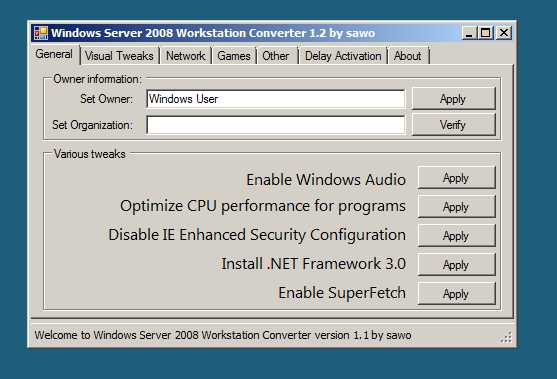
Now, enable the following tweaks:
- General > Enable Windows Audio
- General > Optimize CPU performance for programs
- General > Disable IE Enhanced Security Configuration (select off on options here)
- General > Enable SuperFetch
- Visual Tweaks > Install Desktop Experience
- Visual Tweaks > Enable themes service
- Visual Tweaks > Install Vista SideBar (Select x86 or x64 depending on installation)
- Visual Tweaks > Install Windows Vista Aero Cursors (Mouse Properties will open, go to pointers and select Windows Aero scheme)
- Visual Tweaks > Disable Ctrl+Alt+Del at Windows startup
- Visual Tweaks > Disable Shutdown Event Tracker
- Games > Install gameux.dll for better game compatibility (Select x86 or x64 depending on installation)
- Games > Install game controllers control panel item (Select x86 or x64 depending on installation)
- Other > Enable Windows Search Service
Vista games installation
To install all of the Windows Vista built-in games, start by opening the Server 2008 game enabler package directory
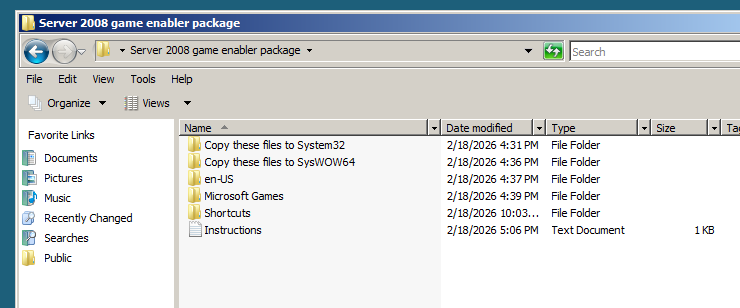
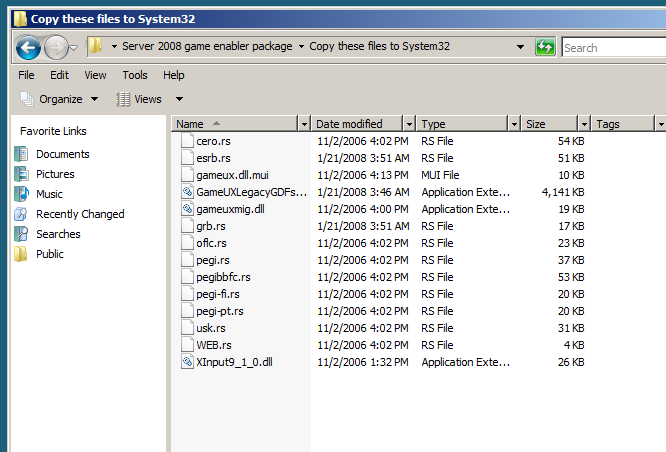
Go into the "Copy these files to System32" directory, and copy all of the files to C:\Windows\System32 (duh)
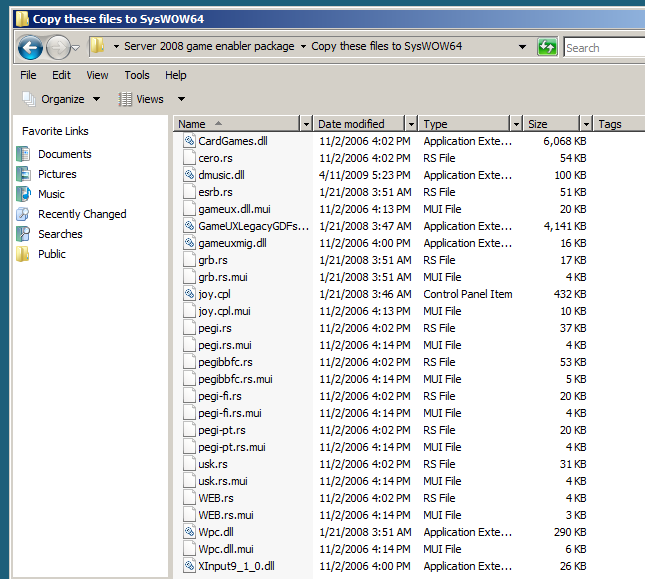
If you're on x64, you'll need to also copy the following files to C:\Windows\SysWOW64 (merge if prompted)
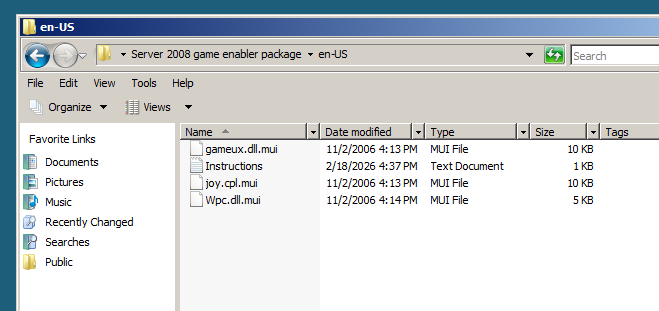
Next, copy the en-US folder to C:\Windows\System32 (merge if prompted as well)
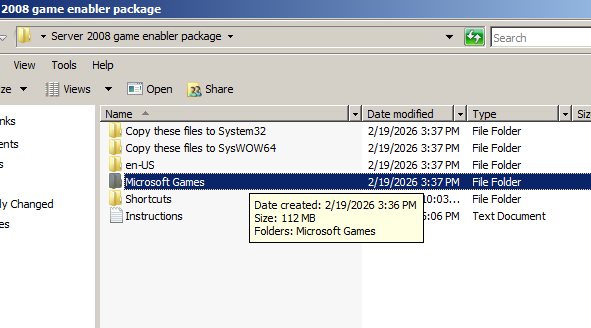
Copy the Microsoft Games folder to C:\Program Files
You should now be able to launch the Vista games in the directory
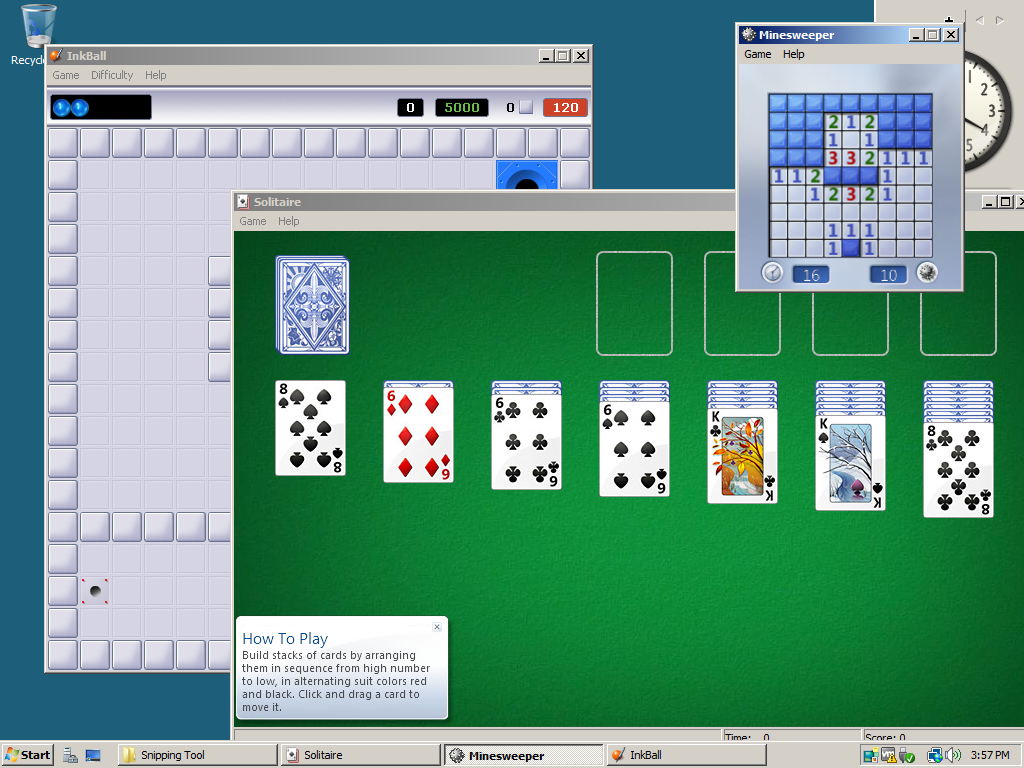
We'll deal with the Shortcuts folder later, moving on to....
Snipping Tool installation
Open the Snipping Tool directory and do the following:
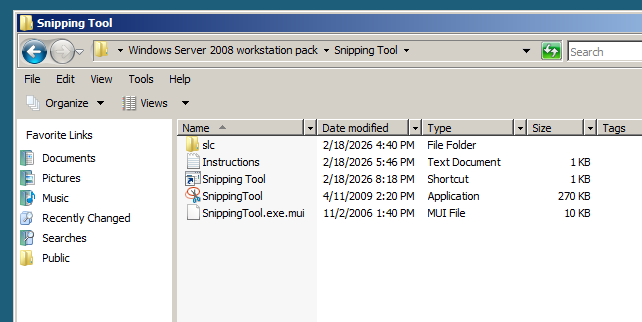
- Create a new directory in C:\, SnipTool, and C:\SnipTool\en-US
- Copy SnippingTool.exe to SnipTool
- Copy SnippingTool.exe.mui to SnipTool\en-US
- Copy attached slc.dll to SnipTool directory (use the one in x86 folder for 32 bit, or the one in x64 folder for 64 bit)
NOTE: Only the x86 slc.dll seems to work for now.
If done right, Snipping Tool should now be working!
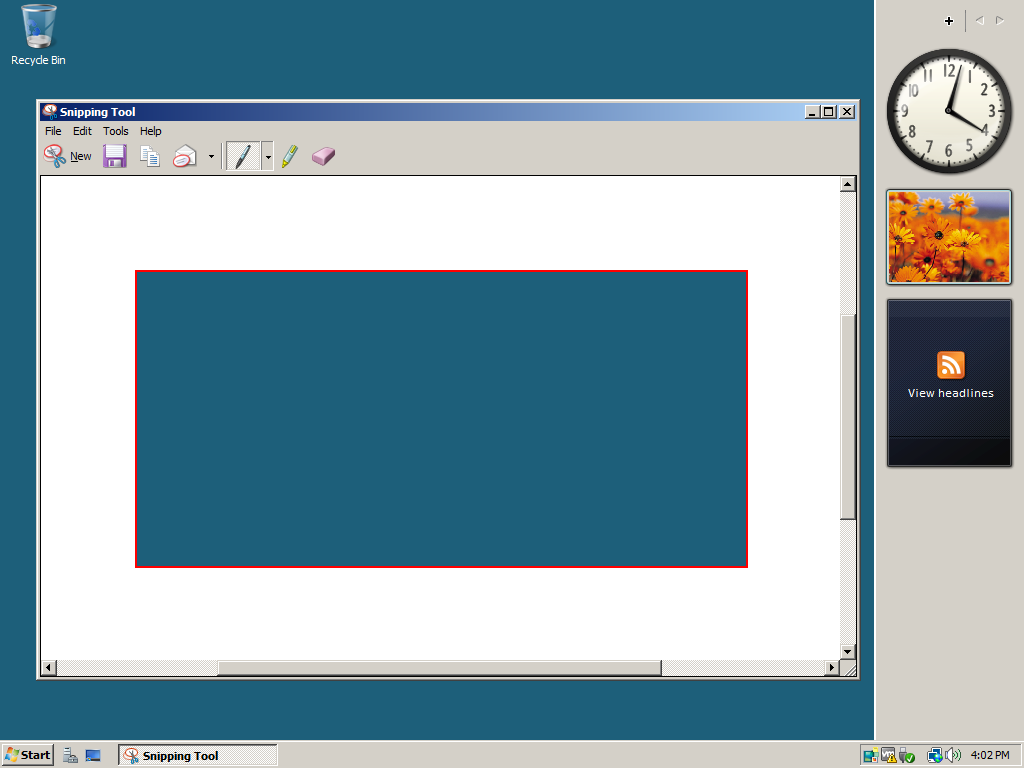
Add the shortcut to the start menu located in the directory. Now...
Vista login screen
NOTE: Updates reset the login screen back to the original one.
Open the Vista login screen directory and open install.cmd as administrator.
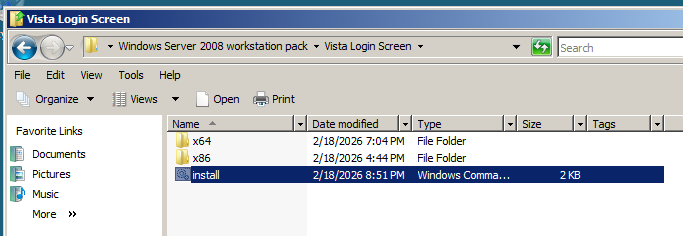
Explorer should close and you'll see this open up, just press "any" key...
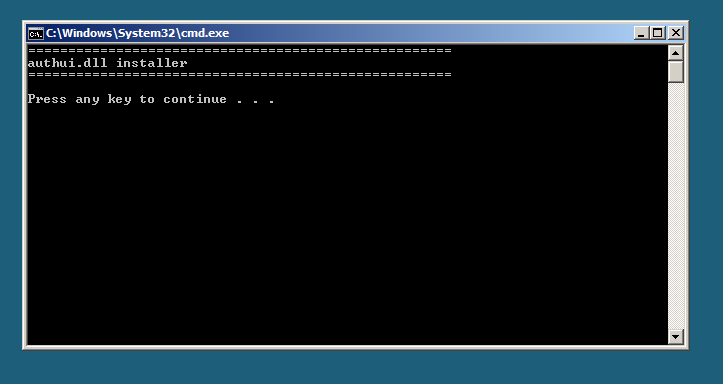
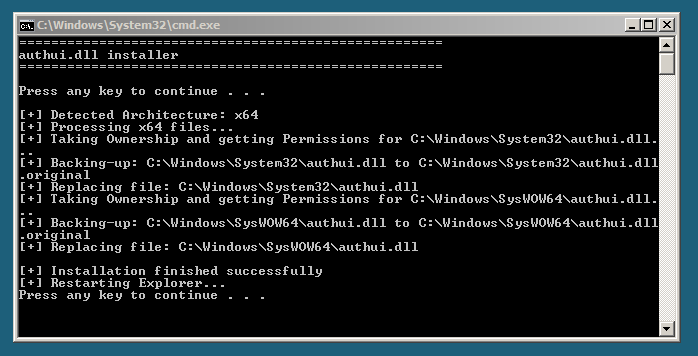
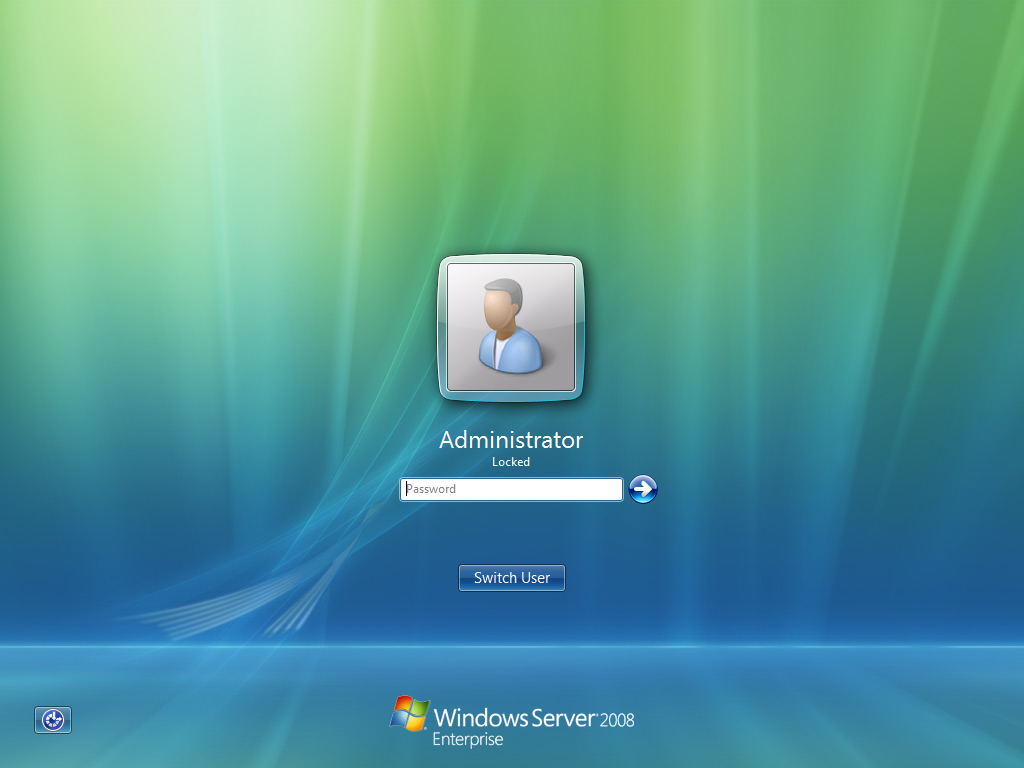
Try switching users or using Win+L after install and the Vista login screen should appear!
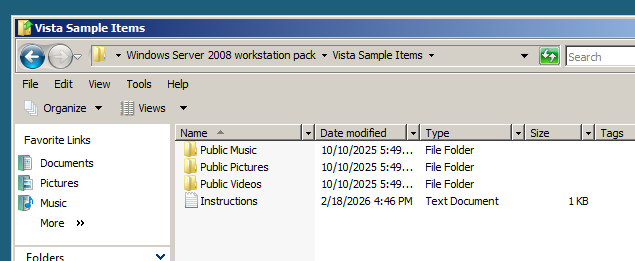
Sample items
This is completely optional. Copy all of the folders inside the directories to C:\Users\Public.
Vista wallpapers
Simple. Copy all of the files to C:\Windows\Web\Wallpaper.
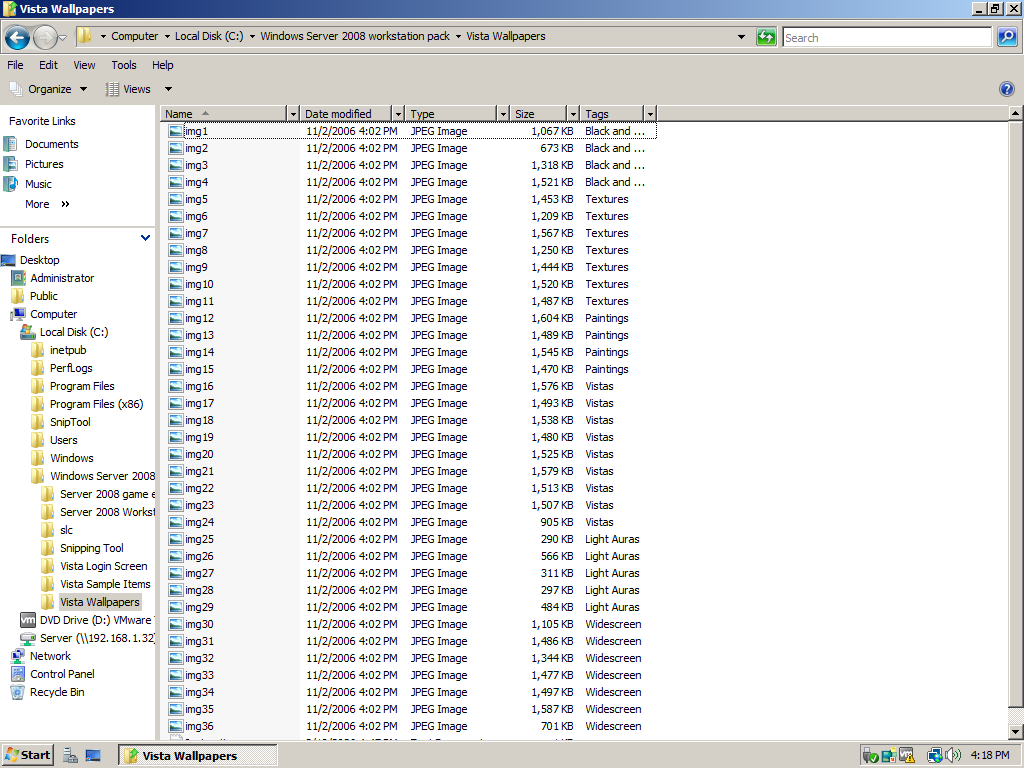
Vista theme + final stuff
After following everything above, start by rebooting your system.
Once you've logged in, right click on the desktop and select Personalize. Click on Theme and select the Windows Vista theme.
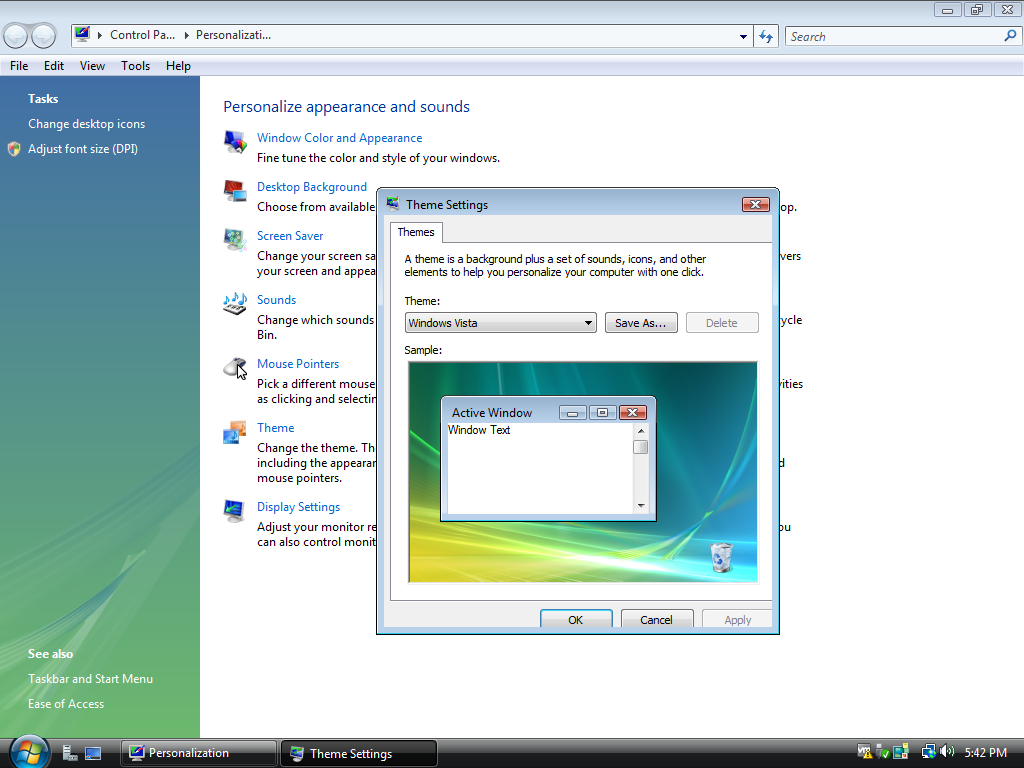
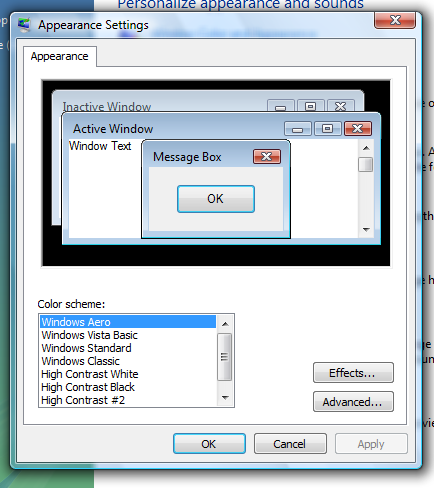
If you wish to use the Aero theme after selecting the Vista theme, go to Window Color and Appearance and select Windows Aero.
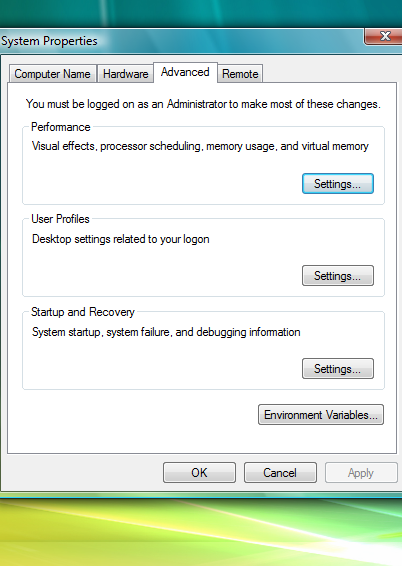
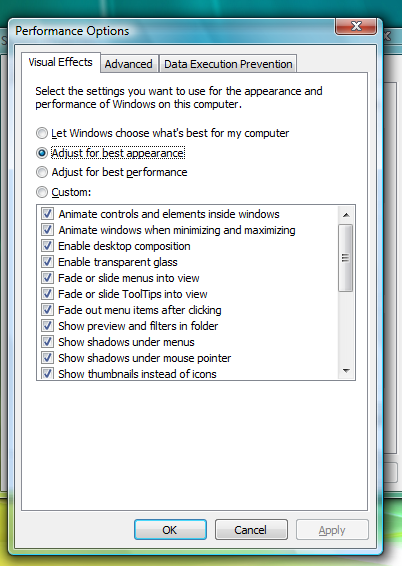
Next, press Win+R or go to the Run option on the Start menu, and type sysdm.cpl. Go to Advanced and click Settings on the first option. Select the option "Adjust for best appearance" and click Apply.
Next, right click on the taskbar and select Properties > Start Menu and configure the following options:
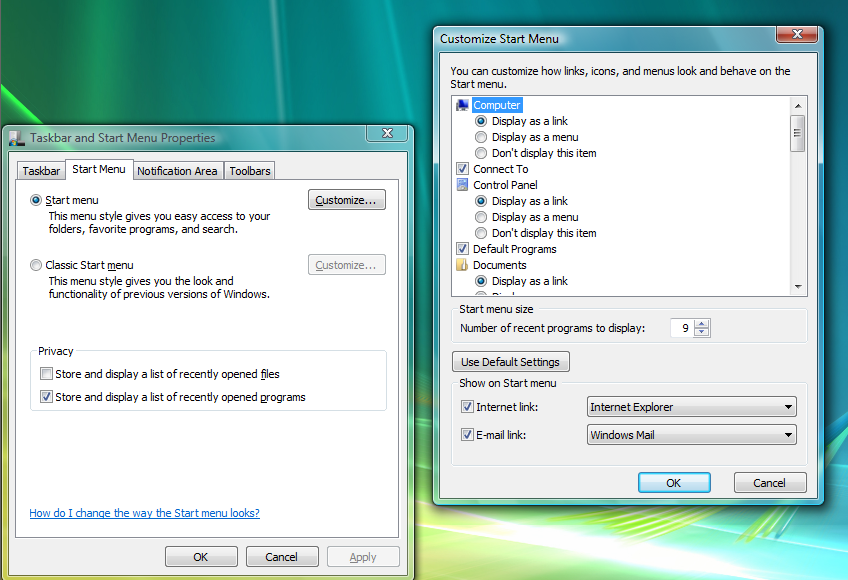
- Connect To > Enable
- Games > Display as a link
- Music > Display as a link
- Pictures > Display as a link
- System administrative tools > Display on the All Programs menu
- Internet link > Enable
- E-mail link > Enable
Select OK and then apply changes.
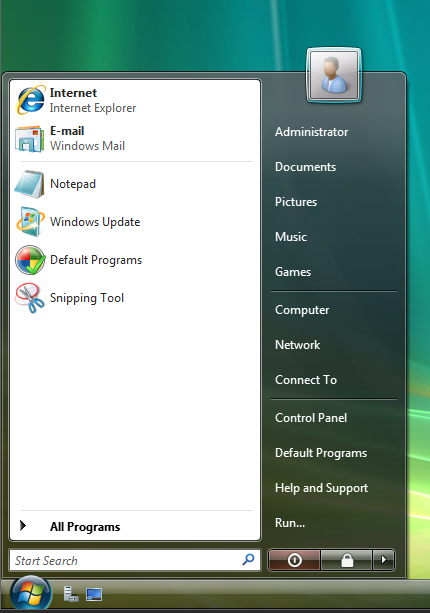
Your start menu should now look like this:
Game shortcuts
To add the shortcuts in Game Explorer, copy the shortcuts from the game enabler pack to Game Explorer (Start > Games)
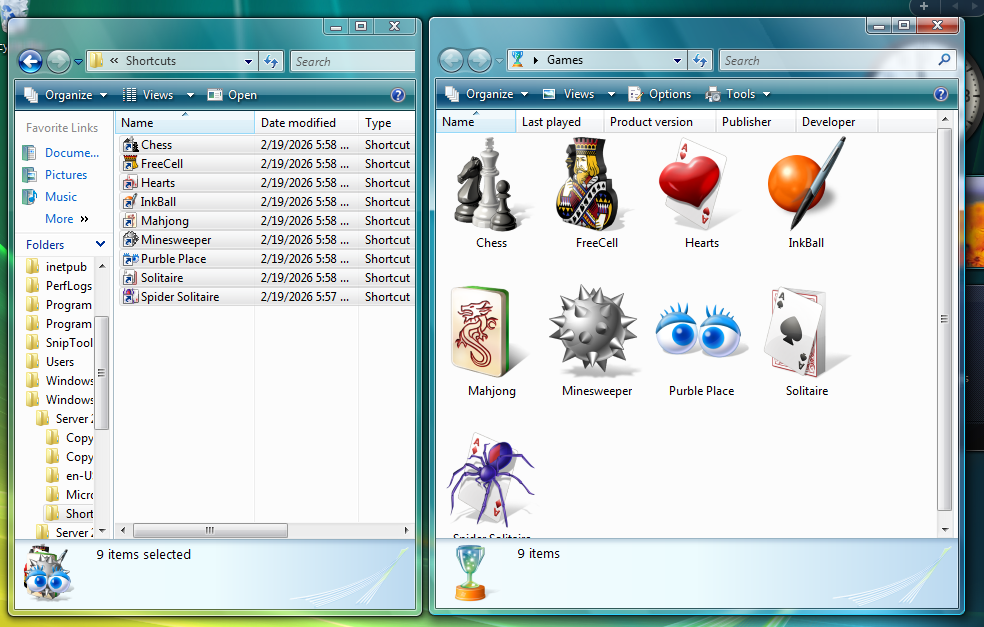
And we're done!
Windows Server 2008 has been transformed into Windows Vista!
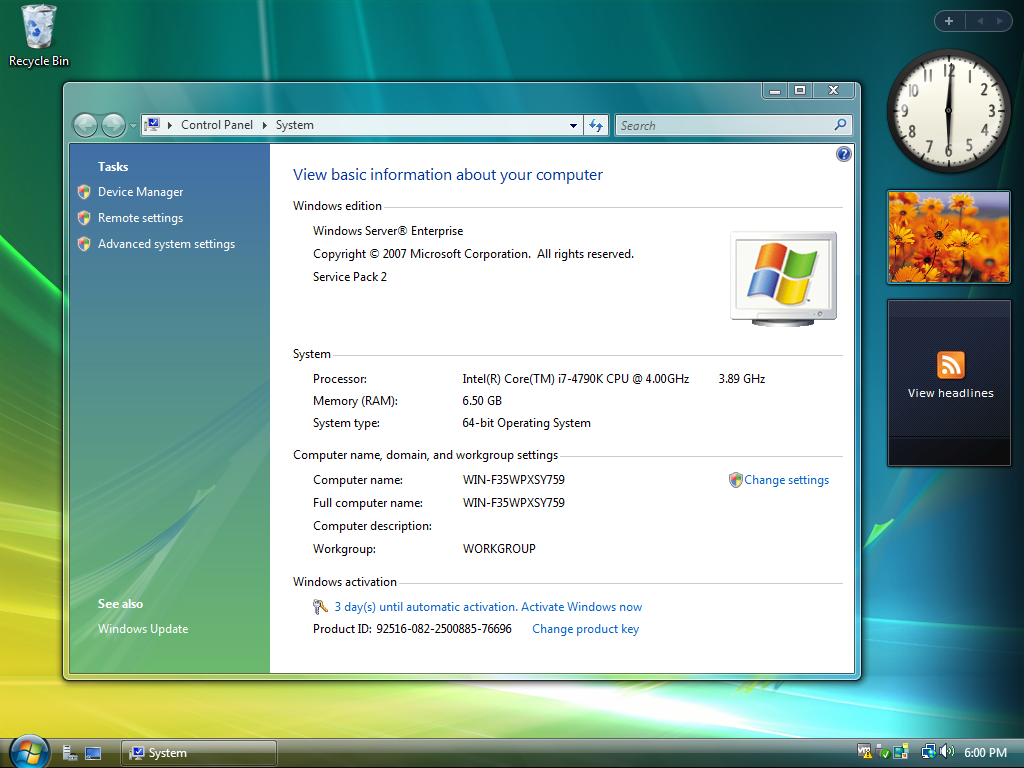
If you have any questions, feel free to let me know.
TheMetalShard (YouTube)
Page written on February 19th 2026. Last updated on February 19th 2026. Back to top — Back to home page